
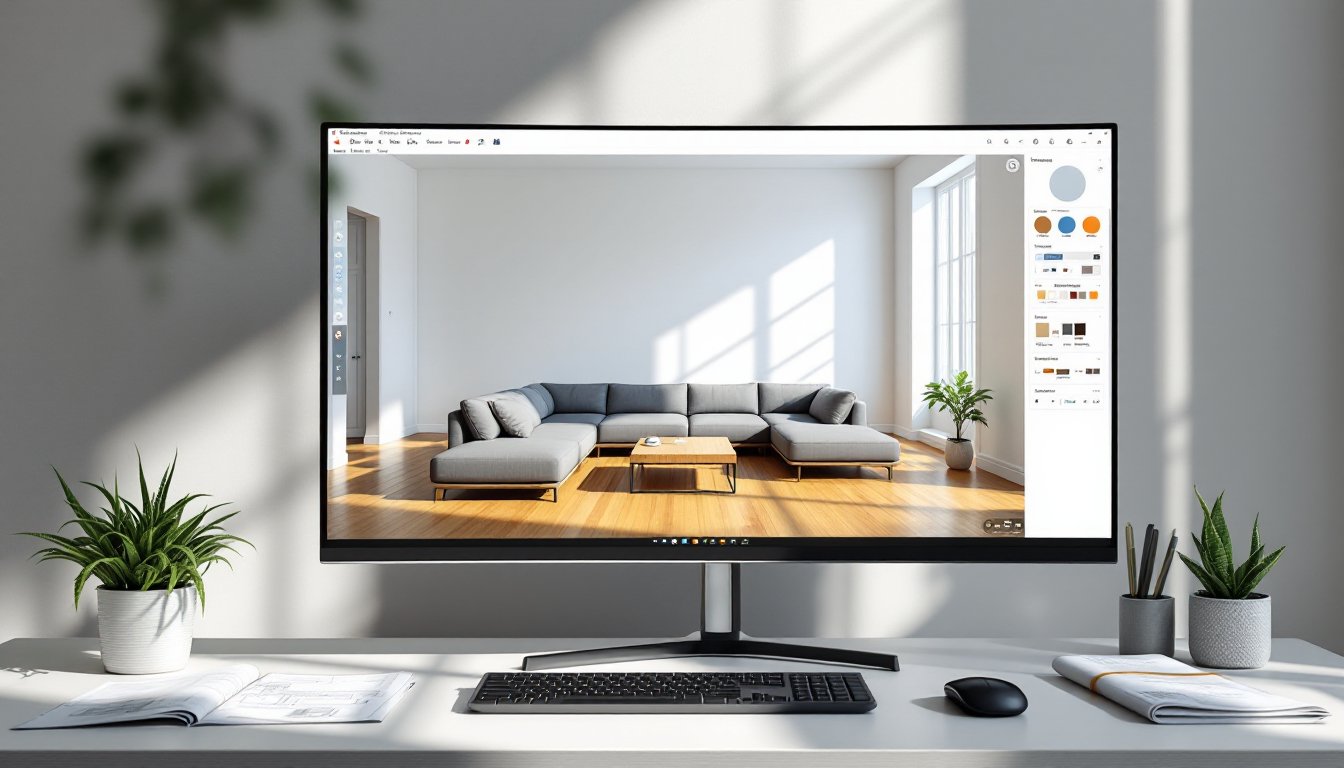
Planning a room makeover or a full home renovation without a clear visual can lead to expensive mistakes and layout regrets. SketchUp offers DIYers and homeowners a way to design and test interior concepts in 3D before committing to paint, furniture, or wall removal. Originally developed for architects, this free (and paid) software has become a go-to tool for anyone who wants to see their design decisions come to life on screen. Whether someone’s rearranging a living room or planning a kitchen remodel, SketchUp turns rough sketches into measurable, walkable models that help avoid guesswork and wasted materials.
Key Takeaways
- SketchUp interior design allows homeowners to test layouts and visualizations in 3D before making costly real-world changes like furniture purchases or wall removal.
- The free version of SketchUp runs in a web browser and includes essential tools for interior design: drawing walls, placing furniture, applying materials, and viewing spaces from any angle.
- Accurate floor plans require precise measurements of wall lengths, ceiling heights, door and window locations, and wall thickness to ensure SketchUp models match your actual space.
- The 3D Warehouse library provides thousands of pre-made furniture and fixture models, saving hours of work and enabling quick testing of multiple layout arrangements.
- Professional clearance guidelines—such as 30-36 inches for walkways and 18 inches between a coffee table and sofa—ensure your SketchUp interior design layout functions comfortably in real life.
- Materials, paint colors, wood textures, and lighting simulation in SketchUp transform wireframe models into realistic previews that guide purchasing and design decisions.
Why SketchUp Is a Game-Changer for Interior Design Projects
SketchUp removes the mystery from spatial planning. Instead of guessing whether a sectional will fit or if a new island will block traffic flow, users can model the space to scale and test layouts digitally. The software works with real-world dimensions, so a wall drawn at 10 feet is actually 10 feet, no conversion math required.
The free version (SketchUp Free) runs in a web browser and includes enough functionality for most home design projects: drawing walls, placing furniture, applying materials, and viewing the space from any angle. SketchUp Pro adds advanced features like custom plugins, high-resolution exports, and LayOut for creating construction documents, but the free tier handles the bulk of interior visualization work.
What sets SketchUp apart is its 3D Warehouse, a vast library of free, user-uploaded models. Need a sofa, a pendant light, or a specific IKEA cabinet? There’s likely a ready-made model available for download. This saves hours of modeling time and lets users focus on layout and design rather than recreating every object from scratch.
For homeowners tackling projects that require permits or contractor bids, SketchUp models serve as clear communication tools. A contractor can review a 3D plan and immediately understand the scope, which reduces misunderstandings and helps generate more accurate estimates. Many professionals working in 3D interior design use SketchUp for client presentations and project planning.
Getting Started with SketchUp for Your Home Design
New users should start with SketchUp Free at sketchup.com. No download is required, just create an account and launch the web app. The interface centers around a large workspace with a toolbar on the left and a measurements box in the lower-right corner. That measurements box is critical: it displays dimensions in real time as someone draws, and typing a number (like 96) followed by Enter will set a line to exactly 96 inches.
Before drawing anything, users should set the correct template. SketchUp defaults to architectural units (feet and inches), which works well for U.S.-based projects. The template also sets the camera perspective and includes a simple human figure for scale reference, helpful when judging ceiling heights or furniture proportions.
The learning curve is moderate. Basic navigation, orbit, pan, zoom, takes about 10 minutes to master. Drawing rectangles, pushing/pulling them into 3D shapes, and moving objects around can be learned in an afternoon. SketchUp’s built-in tutorials (accessible from the welcome screen) walk through the fundamentals in about an hour.
A few tips for first-time users:
- Start simple. Model one room before tackling an entire floor plan.
- Use groups and components. These keep objects separate so edits don’t accidentally merge geometry. Right-click any object and select “Make Group.”
- Save often. SketchUp Free auto-saves to the cloud, but manual saves prevent lost work during browser crashes.
- Measure the actual space first. Grab a tape measure and note wall lengths, ceiling height, window placements, and door swings. Accurate input data leads to accurate models.
Essential SketchUp Tools and Features for Interior Layouts
The core toolset for interior design includes six primary tools:
- Line tool (L): Draws edges and outlines. Click to start, click to end. Type a dimension and hit Enter to lock the length.
- Rectangle tool (R): Creates four-sided shapes. Click once for the starting corner, move the cursor, then click again. Type dimensions like 120,96 for a 10-by-8-foot rectangle.
- Push/Pull tool (P): Extrudes flat shapes into 3D volumes. Draw a rectangle, select Push/Pull, click the face, and drag upward. Type 96 to create an 8-foot-tall wall.
- Move tool (M): Repositions objects. Click the object, move the cursor, click again to place. Hold Shift to lock movement along one axis (red, green, or blue).
- Tape Measure tool (T): Measures distances and creates guide lines. Click two points to see the distance, or click once and move to create a guideline at a specific offset.
- Paint Bucket tool (B): Applies materials and colors to surfaces. Select a material from the Materials panel, then click any face to apply it.
These six tools handle 90% of interior modeling tasks. Additional tools like Rotate, Scale, and Follow Me come into play for custom molding, curved walls, or complex trim details, but they’re not essential for basic room layouts.
Creating Accurate Floor Plans and Room Measurements
Accurate floor plans start with accurate measurements. Walk through the space with a 25-foot tape measure and note every dimension: wall lengths, door and window locations, ceiling height, and any offsets or jogs. Sketch these on graph paper first, it’s faster to catch measurement errors on paper than in the model.
In SketchUp, begin by drawing the outer walls. Use the Rectangle tool to create the room’s footprint, then Push/Pull the face upward to the ceiling height (typically 96 inches for an 8-foot ceiling). For multi-room layouts, draw one large rectangle representing the entire floor area, then use the Line tool to divide it into individual rooms.
Doors and windows require cutouts. Draw a rectangle on the wall face where the opening belongs, then use Push/Pull to push the face all the way through the wall thickness (usually 4.5 inches for interior walls with ½-inch drywall on each side of a 2×4 stud). For a standard 32-inch interior door, draw a rectangle 32 inches wide by 80 inches tall, positioned about 2 inches from the adjacent wall.
Window sills sit at different heights depending on the room. Kitchen windows typically start at 36 to 42 inches above the floor (countertop height), while bedroom windows may start at 24 to 36 inches. Model the window frame and glass separately if the view matters for lighting studies.
Use SketchUp’s dimensioning feature to label key measurements. Select the Tape Measure tool, click two points, and the dimension appears. These labels help during construction or when ordering materials.
One common mistake: forgetting wall thickness. When measuring a room, people often measure the interior dimensions (the space between finished surfaces). SketchUp needs the centerline or outer dimensions of walls to account for thickness. If a room measures 12 feet across inside, and the walls are 4.5 inches thick, the outer dimension is roughly 12 feet 9 inches.
Designing and Visualizing Furniture Placement in 3D
Once the floor plan is set, furniture placement determines whether the layout functions in real life. SketchUp’s 3D Warehouse (accessible from the toolbar or at 3dwarehouse.sketchup.com) contains thousands of furniture models, from generic sofas to exact replicas of name-brand pieces.
Searching the warehouse works best with specific terms. Typing “sofa” returns thousands of results, but “sectional sofa 90 inches” narrows it down. Many models include dimensions in the title or description, which helps filter for scale-appropriate options. Inspiration platforms like Houzz showcase real-world furniture arrangements that can guide model selection and placement.
After downloading a model, it imports directly into the workspace. Use the Move tool to position it, and the Rotate tool (Q) to adjust orientation. Pay attention to clearances, the space around furniture that allows comfortable movement. Standard guidelines:
- 30 to 36 inches of clearance for walkways
- 18 inches minimum between a coffee table and sofa
- 24 to 30 inches of clearance around a dining table for chairs to pull out
- 36 inches in front of appliances (stove, fridge, dishwasher) for safe operation
SketchUp’s camera tools let users “walk” through the space. The Position Camera tool places the viewpoint at eye level (about 5 feet 6 inches), and the Look Around tool simulates turning the head. This first-person view reveals whether a layout feels cramped or whether sightlines work as intended.
For furniture shopping, users can model custom pieces or import manufacturer models. Some companies provide SketchUp files for their products, which ensures exact dimensions. If a model isn’t available, draw a simple rectangular proxy at the correct size, it’s enough to test fit and spacing.
Another practical use: testing multiple layouts. Duplicate the model (File > Save As), rearrange the furniture, and compare versions side by side. This trial-and-error process is far cheaper than moving a sectional three times on moving day.
Adding Materials, Colors, and Textures to Bring Your Vision to Life
Materials and colors turn a wireframe model into a realistic preview. SketchUp’s Materials panel includes libraries of wood, tile, carpet, paint, and fabric textures. Applying a material is as simple as selecting it from the panel and clicking a surface with the Paint Bucket tool.
For paint colors, users can input exact RGB or HEX values from a manufacturer’s website. Most paint brands (Sherwin-Williams, Benjamin Moore, Behr) publish digital color codes. Create a new material in SketchUp, enter the code, and apply it to walls for an accurate color preview.
Wood grain direction matters for realism. When applying a wood texture to a floor, the grain should run lengthwise along the planks. Right-click the material, select “Texture > Position,” and use the pins to rotate and scale the image until it looks natural. Typical wood plank widths range from 3 to 5 inches for hardwood and 6 to 8 inches for engineered or luxury vinyl plank.
Tile and stone materials require attention to grout lines and scale. A 12×12-inch porcelain tile should have thin grout lines (⅛ to ¼ inch), while larger-format tiles (24×48 inches) use narrower joints. Design resources like Homedit offer galleries of tiled spaces that show realistic applications and color pairings.
For upholstery and soft goods, SketchUp’s default fabric textures work well enough for concept visualization. If someone’s matching a specific fabric, they can photograph a swatch, import the image as a texture (File > Import), and apply it to furniture models.
Lighting affects how materials appear. SketchUp Free includes basic shadows (View > Shadows) that simulate sunlight at different times of day. Adjusting the time slider shows how natural light moves through the space, which helps with window treatment decisions and paint color selection. North-facing rooms tend to cast cooler light, while south-facing rooms get warmer, more intense sun.
Tips for Realistic Rendering and Presentation Views
SketchUp Free’s rendering is serviceable but limited. For higher-quality images, users can export the model and use rendering extensions like V-Ray or Enscape (both paid), which add photorealistic lighting, reflections, and shadows. These tools are overkill for most DIY projects but valuable if someone’s presenting to a contractor or seeking investor approval for a rental property renovation.
A few tricks to improve visual quality in SketchUp Free:
- Enable shadows and adjust softness. Softer shadows (slider in the Shadows panel) look more natural than hard-edged ones.
- Use the Fog feature sparingly. It adds atmospheric depth but can obscure detail if overdone.
- Set the field of view (FOV) to 35-45 degrees. The default FOV (35mm lens equivalent) produces realistic perspective. Wider angles distort space.
- Export high-resolution images. SketchUp Free’s export settings allow up to 2400×1600 pixels, sufficient for printing or sharing online.
For client or contractor presentations, create a series of views: a full room shot, a close-up of a focal point (fireplace, kitchen island), and a first-person perspective from the entryway. Save each as a scene (View > Scenes > Add Scene), and SketchUp will remember the camera position and settings. Scenes also help when revisiting a model weeks later.